

If you use Dataform, BigQuery Pipelines or BigQuery Note-books, you may have recently received an email from Google informing you of two critical deadlines regarding Dataform security:
- January 19, 2026: Strict act-as mode is enforced for all newly created repositories.
- April 29, 2026: Enforcement begins for all existing repositories.
What does this mean? In short, the "legacy" way of running Dataform (i.e. Google’s background services had automatic permission to run your code) is being retired. You must now explicitly authorize the "handshake" between Google’s automation and your data.
If you don't act before the deadline, your automated data pipelines will stop. Here is how to fix it in 5 minutes.
Step 1: Enable Security Enforcement
First, we need to tell Dataform to move to the new security model.
- In the Google Cloud Console, go to BigQuery > Dataform.
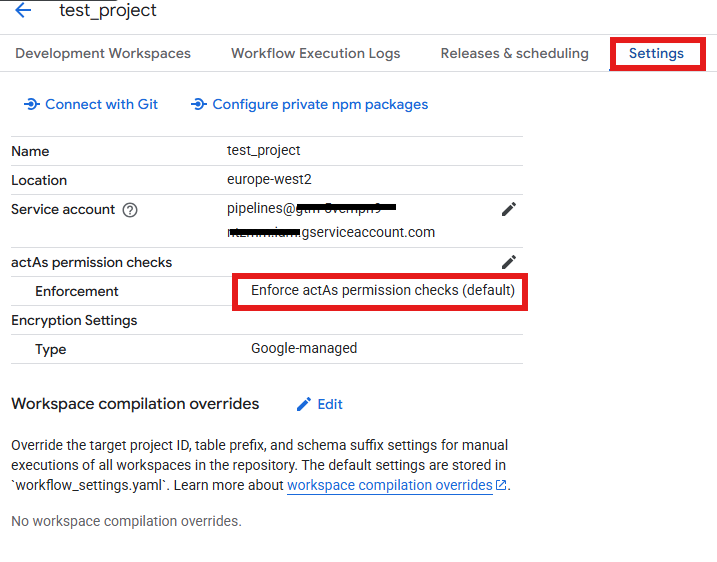
- Open your repository and click on Settings.
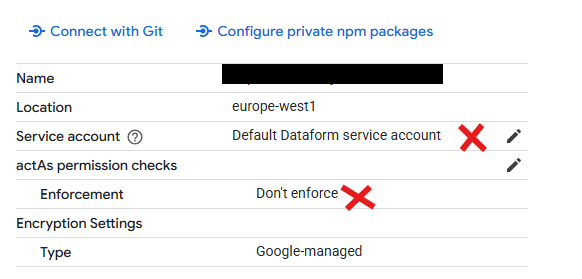
- Make sure the ‘Service account’ is selected to use a custom service account you created, not ‘Default Dataform service account’
- Change actAs permission checks to ‘Enforce actAs permission checks’, if the current section is ‘Don’t enforce’
Step 2: The Service Agent "Handshake"
Dataform uses a background "Service Agent" to manage your schedules. You must give this agent permission to "act as" your custom account.
- Go to IAM & Admin > IAM.
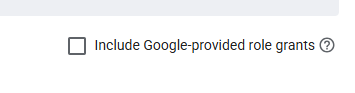
Check the box at the top right: "Include Google-provided role grants."
Search for "Dataform Service Agent" and copy its email (it looks like service-PROJECT_NUMBER@gcp-sa-dataform...).

Now, go to IAM & Admin > Service Accounts. In the account list, find the Custom Service Account (the one you are using for the Dataform workspace)
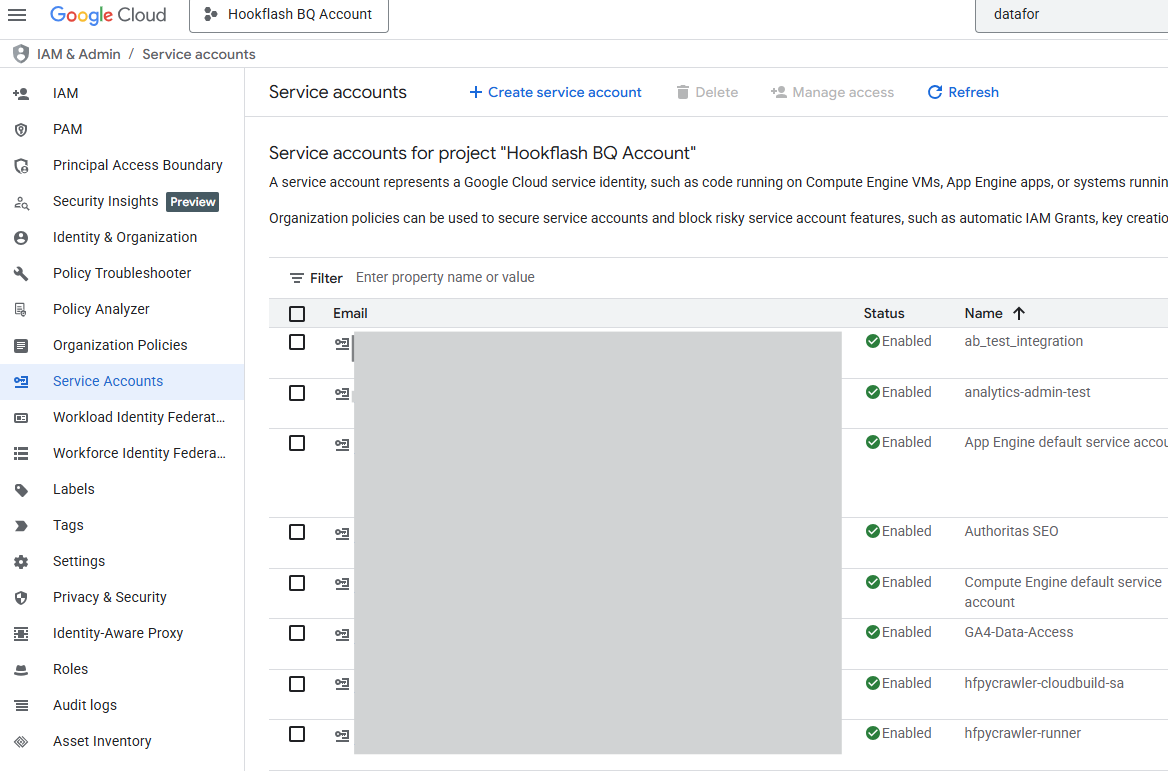
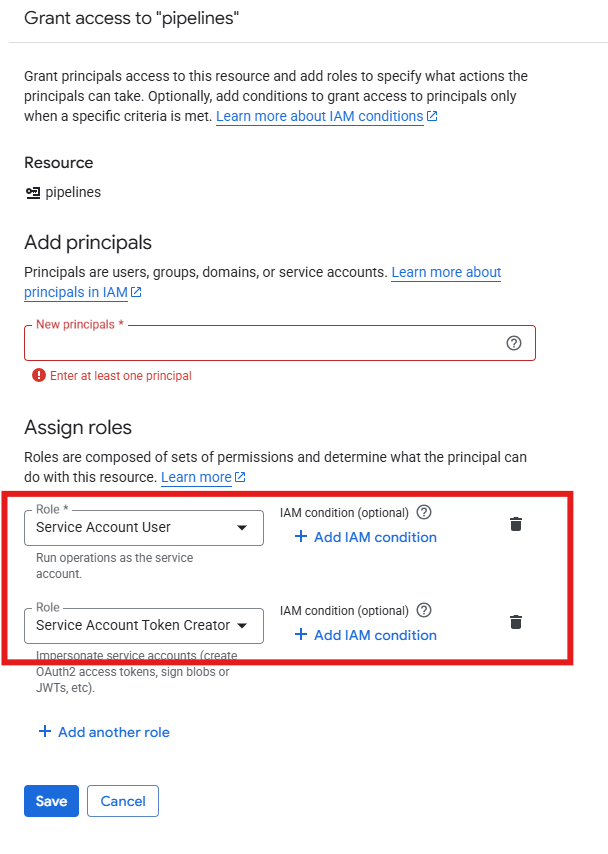
- Go to the Principals with access tab, click Grant Access, and paste the Dataform Service Agent email from step 3.
- Assign these two roles:
- Service Account User
- Service Account Token Creator
Step 3: Authorize the "Callers" (Humans & Tools)
Strict mode doesn't just check the background agent; it checks whoever "pushes the button" to start a run.
- For your team: Any developer who manually clicks "Run" or edits a schedule needs the Service Account User role on that same Custom Service Account.
- For other tools: If you use Cloud Composer (Airflow), Cloud Scheduler, or CI/CD pipelines to trigger Dataform, the service accounts for those tools also need the Service Account User role.
Step 4: Check Your "Inheritance"
You don't need to manually update every single schedule (Workflow Configuration).
In a Dataform workspace, go to ‘Releases & Scheduling’. Click into each configuration under Workflow configurations section.
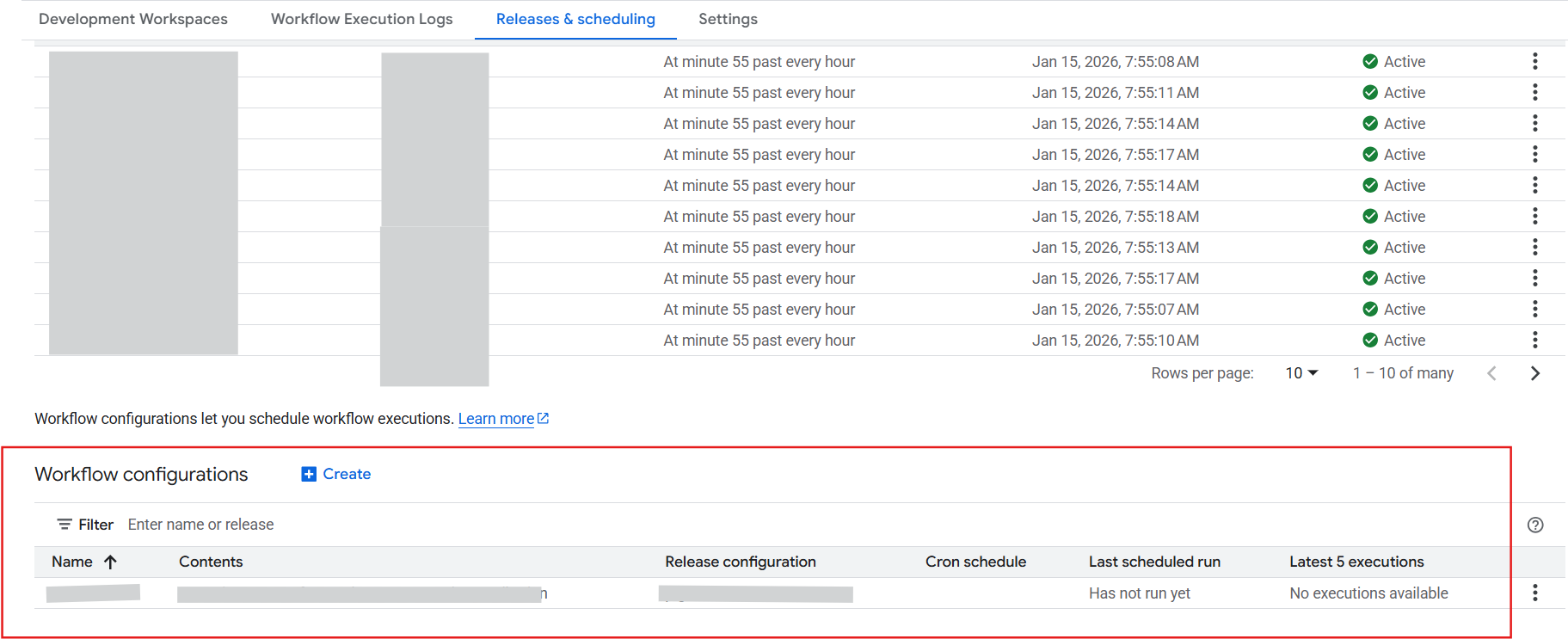
- Make sure Authentication uses the correct service account. If the set up is a default 'Service account' , it will automatically "inherit" the custom account you set in Step 1. This is the cleanest way to manage your project.
Step 5: The "Success" Test
Once you have saved your changes, run a quick "fire drill":
- Manual Test: Have a team member trigger a manual run in the Dataform UI.
- Automation Test: Check your next scheduled execution.
- Logs: If you see any errors, check Cloud Logging. Failed checks will appear with the label dryRunResult = false.
Summary
The April 2026 deadline might feel far away, but flipping the switch now ensures your team isn't caught in a "Permission Denied" crisis later. By explicitly defining who can "act as" your data runner, you aren't just checking a box for Google, you are significantly hardening your data security.
You may also be interested in

GA4 Traffic Allocation and Conversion Attribution (Part II: GA4 BigQuery)
Read more about GA4 Traffic Allocation and Conversion Attribution (Part II: GA4 BigQuery)
GA4 BigQuery vs. GA4 UI Series: Comparing Advanced Consent Mode Output
Read more about GA4 BigQuery vs. GA4 UI Series: Comparing Advanced Consent Mode Output